Chrome third party cookies
Third party cookies are required in order to automatically
ignore your own visits to your own websites, as well as load the
on-site analytics widget. Follow these instructions to whitelist clicky.com, as well as all your own websites domains, to ensure you can access this functionality.
These screenshots are from the desktop version of Chrome, but the mobile version has the same icon in the URL bar with all the same functionality behind it, so these instructions should work for you either way. We also have instructions for
Firefox 🦊.
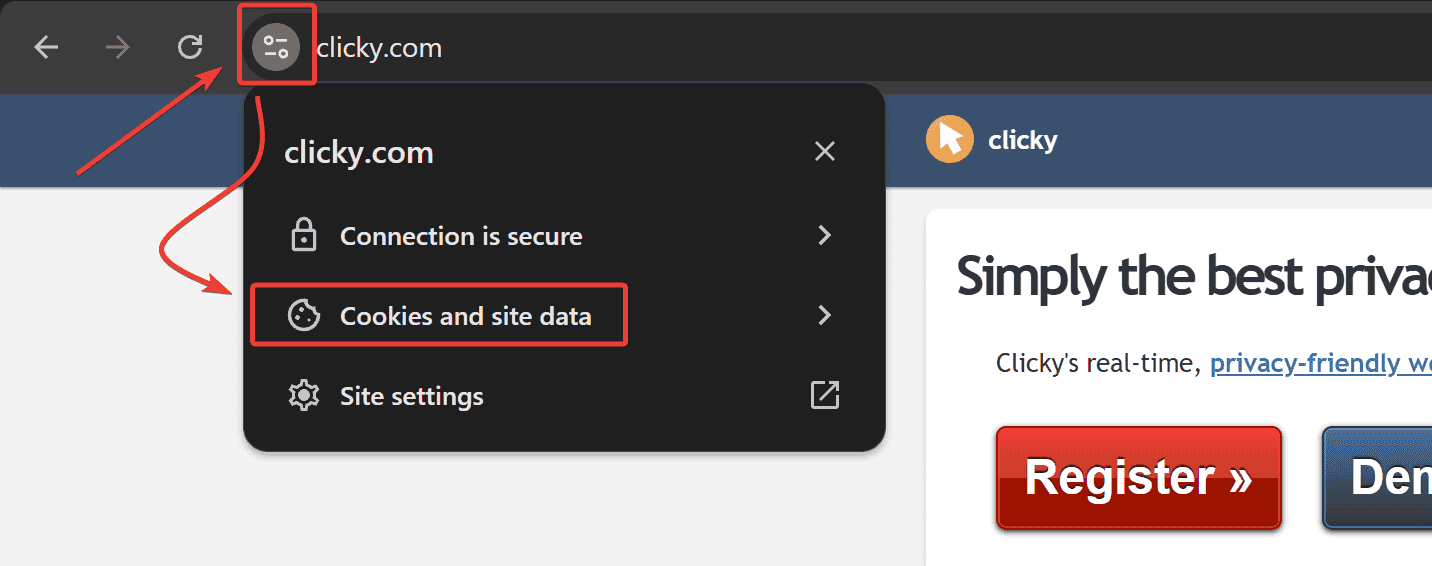
First, on clicky.com (the site you're on
right now), click the site information icon, then "cookies and site data".
Next, make sure the button is toggled ON.
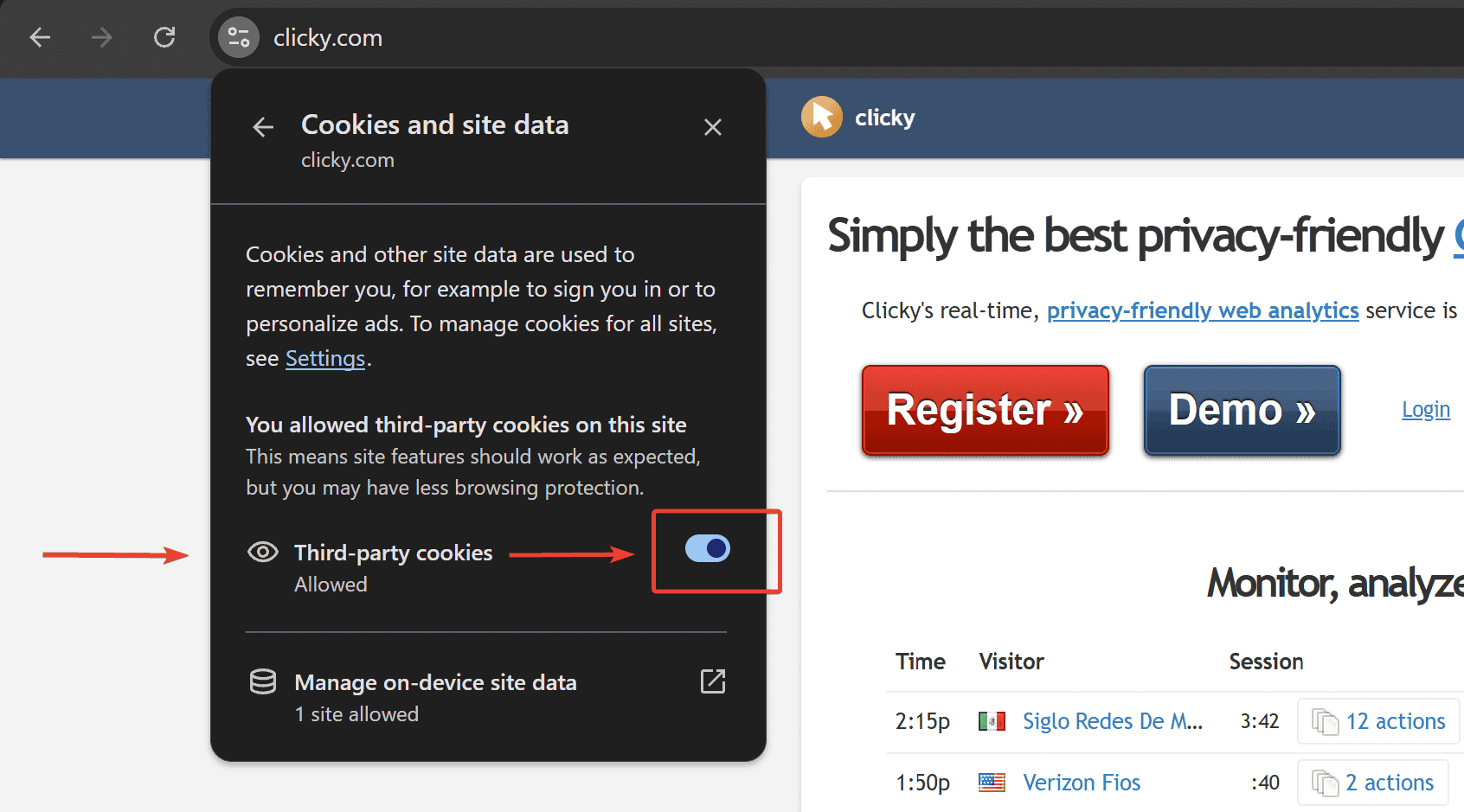
Follow the same steps above for
all of your websites that you are tracking with Clicky.
Next, visit your
user homepage to allow the cookies to be set in the background.
And finally, visit one of your own websites...again. Then marvel at the wonder of the on-site analytics widget, and bask in the glory of knowing that you are not being tracked on your own website. Hooray!
📢 Simple, powerful, and easy to use
Join Clicky today and take your analytics to the next level
 0 online
0 visitors
0 actions
0 online
0 visitors
0 actions


